Naviceivers for Campers
Citroën Jumper II/III 2006+
Fiat Ducato III/IV 2006+
Fiat Ducato 8 2021+
Ford Transit 2020+
Mercedes-Benz Sprinter 2006+
Mercedes-Benz Vito 2007+
Opel Movano III 2021+
Peugeot Boxer II/III2006+
Renault Master III 2019+
Volkswagen Crafter 2006+
Cameras
Naviceivers/Moniceivers
Sound Systems
Navigation Software
Accessories
PRODUCTS



Navigation
1. Which countries are included in the iGO navigation software?
Our licenses for iGO Primo and iGO Primo Nextgen cover the following countries:
Albania, Andorra, Austria, Belarus, Belgium, Bosnia-Herzegovina, Bulgaria, Croatia, Czech Republic, Denmark, Estonia, Finland, France, Germany, Gibraltar, Greece, Great Britain and Northern Ireland, Ireland, Iceland, Italy, Hungary, Kosovo, Latvia, Liechtenstein, Lithuania, Luxembourg, Macedonia, Malta, Moldova, Monaco, Montenegro, Netherlands, Norway, Poland, Portugal, Romania, San Marino, Sweden, Switzerland, Serbia, Slovakia, Slovenia, Spain, Türkiye, Ukraine, Vatican City
2. How do I update the maps of the iGO navigation software?
Updating your navigation software:
To update your maps, please follow the instructions in our guide, which can be found here.
Information about the status of your maps:
Page 2 of this Guide will show you how to check the information about the state of your maps.
Quick guide to getting information about the status of your maps:
Start the navigation software.
Open "More..." in the main menu, scroll to the left and click on Help > About > More > Content > Maps.
3. No GPS satellite was found?
A good GPS reception is only guaranteed with a correct installation of the enclosed GPS antenna. Therefore, do not install the device's GPS antenna under metallic covers or too far down in the dashboard. Installation on the A-pillar by the windshield is ideal for GPS reception. Please note that a metal-coated windshield can also impair reception.
TIP: For devices with an Android operating system, you can open the "GPS Test" app in the app menu. There you will find information about the receivable GPS satellites and their signal strength.
4. Can I copy the navigation software onto a larger SD card?
Unfortunately, for legal reasons, it is not possible to copy the contents of the original SD card to a larger SD card. The software license is permanently linked to the original SD card.
5. Can I deactivate the key tone of the navigation software?
Solution for all naviceivers:
Disable the key beep from the iGO navigation software: start navigation, >main menu >more >settings >sound and warnings >volume: click on the speaker symbol next to "Key". The key beep of the navigation software is now disabled.
TIP for all i09 / i10 / i11 / i20 / i30 / i35 Naviceivers :
If you want the key peep and the navigation message only from the front speakers, go to >Audio > Advance and set “Audio Mixer” to “On”. Now the key beep and the navigation messages are only audible from the front speakers.
6. Does the day/night display of the navigation software not react to the vehicle light?
The navigation software switches to day or night display regardless of the vehicle light depending on the time (determined by the GPS signal).
TIP: You can select the color design under "More..." > "Settings" > "Map Settings" > "Day Map Colour" respectively "Night Map Colour". 12 different designs are currently available.
7. Radar detectors and warning points are not displayed in the route guidance despite being activated?
This warning function is prohibited in almost all European countries, which is why it has been deactivated in our software licenses.
8. The device reacts slowly or not at all while the navigation software is running?
Increased system load and the simultaneous operation of several apps can overload the device's memory. Therefore quit all apps or applications. If this is not enough, you should perform a complete restart of the device.
9. Notes for all i09 / i10 / i11 / i20 / i30 / i35 Naviceivers
The Navigation starts no more / Request for user name/password
After selecting „Navigation“ the following error message appears:
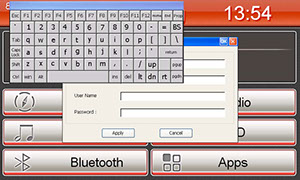
Reason:
The path to the navigation software was changed and now „DailUpSetting.exe“ will be executed at every navigation startup try (picture shows the dial up parameters for 3G/UMTS usage)Remedy:
Change the path like described in the user manual:Apps > Option > System: Change the path with „Browse”
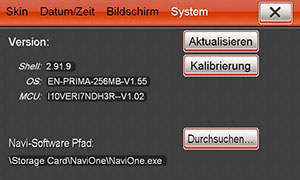
The pre-volume of the navigation is not adjustable under "Audio" > "Advanced"
Remedy:
This problem is well known and occurs only when "Audio Mixer" is enabled, due to type of construction the navigation software and audio player shares the same audio-channel. Set the "Audio Mixer" under "Audio" > "Advanced" to “OFF”.Error message "Unidentified USB Device"
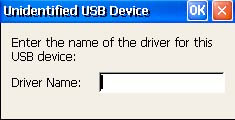
Reason:
The TMC driver for the USB TMC module is missing. This error message should occur only with the OS Version 1.55 or 1.55-U1.
Note:
Check your OS Version under Apps" >"Option" > "System".Remedy 1 (recommended):
Proceed an OS Update to the latest Version. The latest Version will always include the TMC driver which you find in the DOWNLOADS section.Remedy 2:
Install the driver manually. You can find the driver on the ESX iGO SD Card or you can also download the driver here DOWNLOADS. Unpack the .zip-archive with f.e. Win Rar (www.win-rar.com) on a USB stick or a SD card.Connect the USB stick or the SD card with the ESX Naviceiver and open then under >Apps > Files > Other > USB or SD the appropriate folder and start the application CP210x_install.exe (white icon). The device confirms the installation afterwards. Restart the device.
No TMC reception
Note:
In fringe areas, it is possible that you temporarily have no TMC reception. Maybe your reception is ok but, currently, there are no messages. Click on the TMC icon and on the next screen you will see on the bottom right the current tuning frequency. If the reception is strong enough, the (RDS) station name instead of frequency is displayed there, once a station is found with TMC. TMC Pro stations (private broadcasters) are only received when you bought an extra-cost feature on www.naviextras.com.No TMC symbols are displayed in the navigation main menu
Remedy:
The TMC module must be connected before switching on the device and the correct software drivers must be installed in the operating system.Symbols with a working TMC:

Main menu: Three cars with i-symbol and signal barsTMC available - but not receiving - search for suitable channels running

Map view: Transmission tower with signal barsTMC sucht nach Sendern und Meldungen

Map view: Three cars with i-symbol and signal barsTMC receives messages from a radio station

Map view: Warning message is displayedTMC works and the expected time to reach the traffic obstruction will be displayed